
Blog
- Home
- Blog
2026 Best Monitor Screens for Work Gaming and Design
Choosing among the 2026 Best Monitor Screens for Work, Gaming and Design requires more than comparing screen size and resolution. A 27-inch 4K display may sharpen spreadsheets, reveal fine typography, and reduce visible pixel structure. Yet it may feel less immersive during fast racing games. An ultrawide panel can improve multitasking, but its wider footprint may overwhelm a small desk.
DisplayMate founder and display expert Raymond Soneira has stated, “The most important thing about a display is its image quality.” That principle remains practical in 2026. Color accuracy, brightness consistency, motion clarity, viewing comfort, and connection options deserve close attention. A designer may need dependable sRGB or DCI-P3 coverage. A gamer may prioritize a high refresh rate, low response time, and adaptive synchronization. A remote worker may value text sharpness, USB-C charging, and an adjustable stand more than dramatic specifications.
There is no perfect screen.
This guide compares Monitor Screens through real use cases rather than headline numbers alone. It considers how panels perform beside bright windows, under warm office lighting, and during long editing sessions. It also examines compromises that product pages often hide. Some displays look impressive but ship with weak speakers or awkward menus. Others offer excellent color after calibration, not immediately out of the box. That difference matters. Personal preferences also complicate the decision, and even careful recommendations can miss the needs of a particular desk, workflow, or budget.
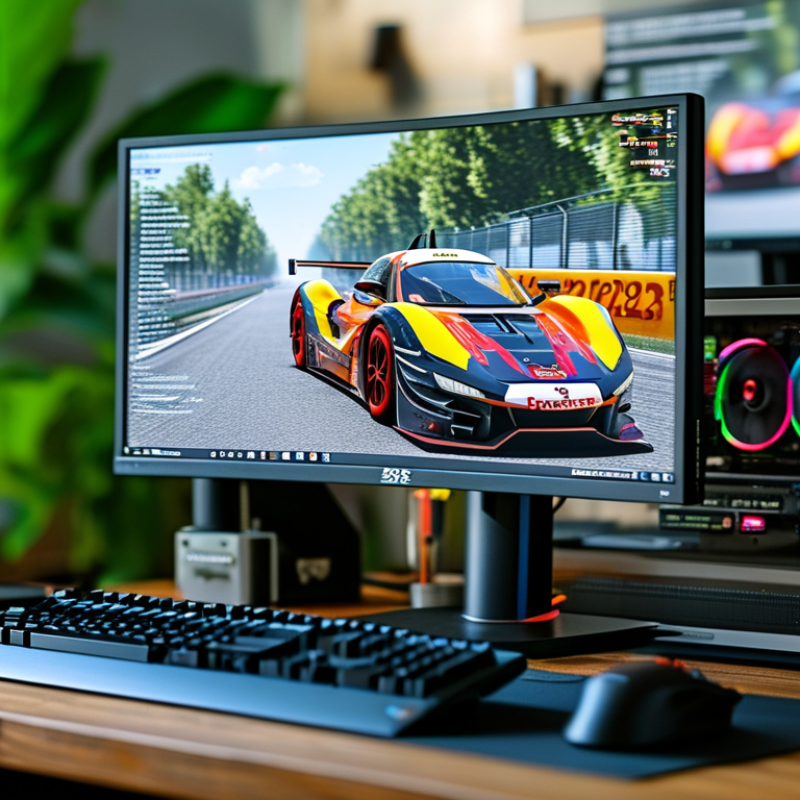
Monitor Types and Core Technologies for Modern Displays
Choosing a monitor begins with its type, not its advertised size. Flat screens suit most desks, while curved models can reduce edge distance on wide displays. Ultrawide screens help with timelines, spreadsheets, and open gaming maps. Portable monitors support flexible work, but their smaller panels may limit detailed design tasks.
Panel technology changes the viewing experience. IPS panels usually provide consistent colors and wide viewing angles. VA panels often produce deeper contrast, especially in dark scenes. OLED panels deliver rapid response and strong blacks, but static interface elements require careful usage. Refresh rate affects motion clarity, while response time helps reduce visible trails. Higher resolution creates sharper text, although scaling may become necessary on smaller screens.
Color accuracy matters more than dramatic showroom brightness for design work. Look for measured coverage, factory calibration data, and support for the needed color space. I have found that a screen can look impressive yet reveal uneven brightness in a dim room. No display is perfect. Viewing distance, lighting, and software settings can change results. Independent measurements are useful, but personal testing remains valuable. DisplayPort, HDMI, height adjustment, and USB connectivity also affect daily comfort. Choose the technology that matches your workload, not the most expensive specification.

Key Specifications for Work, Gaming, and Design
Choosing a monitor in 2026 starts with the task, not the trend. For office work, a 27-inch screen at 1440p often balances sharp text and comfortable scaling. A 4K panel gives cleaner spreadsheets, but small interface elements may slow daily work. Aim for at least 300 nits in a bright room. Add height, tilt, swivel, and pivot adjustment. Your neck notices missing ergonomics quickly. I learned this after a week of working beside a sunlit window.
Gaming needs more than a high refresh number. A 120Hz to 180Hz refresh rate can make camera movement feel smoother. Fast pixel response reduces blurred edges during quick turns. Adaptive synchronization helps limit tearing when frame rates change. Check input latency, too. A beautiful screen can still feel sluggish. Competitive games may benefit from lower resolution and higher frame rates. Story-driven games often reward stronger contrast and deeper blacks. My checklist is still imperfect.
Design work demands measured color, not just vivid color. Look for wide-gamut coverage, accurate factory calibration, and a 10-bit signal path. Delta E results below 2 are useful, though testing methods differ. A uniformity check matters when gray backgrounds fill the screen. Hardware calibration supports more repeatable results. Specifications cannot replace real samples. I once trusted a wide-gamut display and missed a shadow detail after export. That mistake changed my buying process. Compare test charts, inspect gradients, and evaluate the screen under your actual room lighting.
How to Choose the Right Monitor for Your Main Use
Choosing the right monitor starts with your daily tasks, not the highest specification sheet. For office work, a sharp 27-inch display with comfortable text scaling reduces eye strain. A height-adjustable stand also matters after several hours. I once ignored stand quality and regretted it by lunchtime.
Gaming needs different priorities. Check refresh rate, response behavior, input delay, and adaptive synchronization support. A fast panel can feel smooth, but poor motion handling may create distracting trails. Resolution should match your computer’s graphics performance. An extremely sharp display is wasted when games constantly stutter. Test dark scenes, too. Some screens reveal uneven backlighting that specifications cannot show.
Design work demands accurate color, stable brightness, and suitable resolution. Look for wide color coverage, reliable factory calibration, and hardware calibration options when possible. Viewing angles matter during collaborative reviews. A glossy surface may look vivid, but windows can become irritating reflections. Measure your desk depth before choosing a large screen. I still sometimes overestimate available space. Use a colorimeter for serious print or visual production, because visual judgment alone is unreliable. Also consider ports, warranty terms, pixel policies, and power efficiency. The best monitor is not universally superior; it fits your workload, room, computer, and tolerance for compromise.
2026 Best Monitor Screens for Work, Gaming and Design
How to choose the right monitor for your main use: refresh rate is a practical starting point because it directly affects motion smoothness, cursor movement and interactive responsiveness.
Work monitors generally perform well at 75 Hz or above, gaming displays benefit from 144 Hz or higher for smoother motion, and design monitors can prioritize color accuracy and resolution over refresh rate, with 60 Hz being sufficient for many professional workflows.
Top Monitor Features for Productivity and Visual Accuracy
2026 Best Monitor Screens for Work, Gaming and Design
A productive monitor should reduce friction, not simply look impressive on a desk. I prefer a 27-inch screen with sharp text, even brightness, and comfortable scaling. A height-adjustable stand helps maintain a level viewing position during long writing sessions. High refresh rates can make scrolling and interface movement feel noticeably smoother. However, refresh speed matters less than clear text for spreadsheets, research, and daily communication. An anti-glare surface also helps when sunlight reaches the screen from a nearby window.
Visual accuracy requires more than attractive colors. A wide color range, stable contrast, and consistent brightness support dependable design decisions. Factory settings can appear vivid but still misrepresent photographs or illustrations. Use a calibration device when color matching matters. Check skin tones, neutral grays, and shadow details before approving final work. I once trusted a bright display and later found my printed images looked noticeably darker. My judgment was incomplete.
Tips: Compare screens in similar lighting. Test small text at your usual viewing distance. Keep brightness moderate, especially in dark rooms. For design work, verify color performance with trusted test images and calibration software. For gaming, check motion clarity and input response, not only advertised refresh numbers. Read independent measurements when possible, because specifications do not always describe real viewing behavior.
Setup, Ergonomics, and Long-Term Display Care
A good monitor setup starts with the body, not the specification sheet. Place the screen about 50–75 centimeters from your eyes. Its top edge should sit at, or slightly below, eye level, as recommended by the Occupational Safety and Health Administration. Keep the center near your natural gaze. This reduces repeated neck movement during long work sessions. I still catch myself leaning forward when text looks small. Increasing the text size is usually wiser than moving closer.
Lighting matters more than many buyers expect. Avoid a bright window directly behind the screen. Place a soft lamp beside or behind the display, with no visible reflection on the panel. The Vision Council’s 2023 report found that 104 million American adults experienced digital eye strain symptoms. Regular distance breaks can help, though evidence does not support treating them as a perfect solution. My own routine fails when deadlines become intense.
Long-term display care is simple, but often neglected. Clean the surface with a dry microfiber cloth, then use a manufacturer-approved solution when necessary. Never spray liquid directly onto the panel. Use moderate brightness indoors, enable automatic sleep settings, and allow ventilation around the rear housing. ENERGY STAR reports that certified displays use about 25% less energy than conventional models. Check cables twice a year. Small faults can become expensive. Calibration also deserves attention; color work should be checked periodically with a measurement device, because visual memory is unreliable.
2026 Best Monitor Screens for Work, Gaming, and Design — Setup, Ergonomics, and Long-Term Display Care
| Display Profile | Best Use | Typical Size | Native Resolution | Panel Technology | Refresh Rate | Color Coverage | Brightness | Ergonomic Features | Recommended Setup Distance | Long-Term Care Priorities | Overall Fit |
|---|---|---|---|---|---|---|---|---|---|---|---|
| 27-inch Office QHD | Documents, spreadsheets, research, and general productivity | 27 inches 16:9 | 2560 × 1440 Approximately 109 ppi | IPS or high-quality VA | 75–100 Hz | sRGB: approximately 99–100% | 250–350 nits | Height adjustment Tilt VESA support | 60–80 cm | Use moderate brightness, keep text scaling comfortable, and clean with a dry or lightly damp microfiber cloth. | Excellent for work |
| 24-inch Office FHD | Compact desks, schoolwork, email, and basic office applications | 23.8–24 inches 16:9 | 1920 × 1080 Approximately 92 ppi | IPS | 60–100 Hz | sRGB: approximately 95–100% | 200–300 nits | Tilt Low-blue-light mode Flicker reduction | 50–70 cm | Avoid placing the screen directly against a bright window and maintain a clear, stable viewing angle. | Best for small spaces |
| 32-inch 4K Productivity | Large spreadsheets, coding, multitasking, and detailed office work | 31.5–32 inches 16:9 | 3840 × 2160 Approximately 138 ppi | IPS or VA | 60–144 Hz | sRGB: approximately 99–100% | 300–400 nits | Height adjustment Pivot support USB hub | 75–100 cm | Use operating-system scaling when necessary, leave ventilation space around the chassis, and avoid excessive brightness. | Excellent for multitasking |
| 34-inch Ultrawide Workscreen | Side-by-side windows, timelines, project management, and immersive productivity | 34 inches 21:9 | 3440 × 1440 Approximately 110 ppi | IPS or VA | 100–165 Hz | sRGB: approximately 99–100% | 300–400 nits | Height adjustment Curved option Picture-by-picture | 70–90 cm | Center the primary work area, keep the top edge near eye level, and use a monitor arm if desk depth is limited. | Excellent for wide workflows |
| 27-inch 4K Design Display | Photography, illustration, layout, UI design, and high-detail editing | 27 inches 16:9 | 3840 × 2160 Approximately 163 ppi | IPS or professional-grade IPS | 60–144 Hz | sRGB: 100% DCI-P3: approximately 90–98% | 350–500 nits | Factory calibration Height adjustment Uniformity control | 60–80 cm | Calibrate regularly, use a consistent white point, control room lighting, and avoid direct sunlight on the panel. | Excellent for design |
| 32-inch Wide-Gamut 4K Design Display | Color-critical photography, video finishing, 3D work, and large-format layouts | 31.5–32 inches 16:9 | 3840 × 2160 Approximately 138 ppi | IPS, Mini-LED IPS, or OLED | 60–165 Hz | sRGB: 100% DCI-P3: approximately 95–99% | 400–1,000 nits Depending on backlight type | Hardware calibration support HDR support Uniformity compensation | 75–100 cm | Calibrate for the intended color space, keep firmware current, and reduce static high-contrast elements when using OLED. | Best for advanced design |
| 27-inch High-Refresh QHD Gaming | Competitive gaming, fast action, and everyday mixed use | 27 inches 16:9 | 2560 × 1440 Approximately 109 ppi | Fast IPS or OLED | 165–360 Hz | sRGB: approximately 95–100% | 300–450 nits | Adaptive sync Height adjustment Low input lag | 60–80 cm | Enable adaptive synchronization, use moderate brightness, and vary static desktop content on OLED panels. | Best for competitive play |
| 32-inch 4K HDR Gaming | Single-player games, console gaming, movies, and detailed visual work | 31.5–32 inches 16:9 | 3840 × 2160 Approximately 138 ppi | Fast IPS, Mini-LED, or OLED | 144–240 Hz | sRGB: 100% DCI-P3: approximately 90–99% | 400–1,000 nits Peak HDR brightness varies | HDR Adaptive sync Height adjustment | 75–100 cm | Use HDR only with compatible content, maintain good airflow, and follow the panel’s pixel-refresh or compensation cycle. | Best for immersive gaming |
| 42-inch 4K Large-Format OLED | Gaming, video viewing, creative previews, and multi-window desk setups | 42 inches 16:9 | 3840 × 2160 Approximately 105 ppi | OLED | 120–144 Hz | sRGB: 100% DCI-P3: approximately 95–99% | 250–1,000 nits Content and mode dependent | Adaptive sync Pixel shift Automatic compensation | 90–120 cm | Use screen savers, hide fixed taskbars when practical, allow automatic compensation cycles, and avoid prolonged static images. | Best for large immersive setups |
| Portable 16-inch USB-C Display | Mobile work, travel, dual-screen laptop setups, and temporary workstations | 15.6–16 inches 16:10 | 1920 × 1080 or 2560 × 1600 | IPS | 60–120 Hz | sRGB: approximately 95–100% | 250–500 nits | USB-C video Foldable stand Low weight | 45–65 cm | Store it in a protective sleeve, avoid bending the panel, use a certified USB-C cable, and keep connectors free of dust. | Best for mobility |
Specifications are representative 2026 market ranges for each display profile. Actual brightness, color coverage, response time, HDR performance, power use, and burn-in protection vary by individual model and operating mode.
(780) 669-9420